
Effective Tips for Setting Boundaries with Notifications
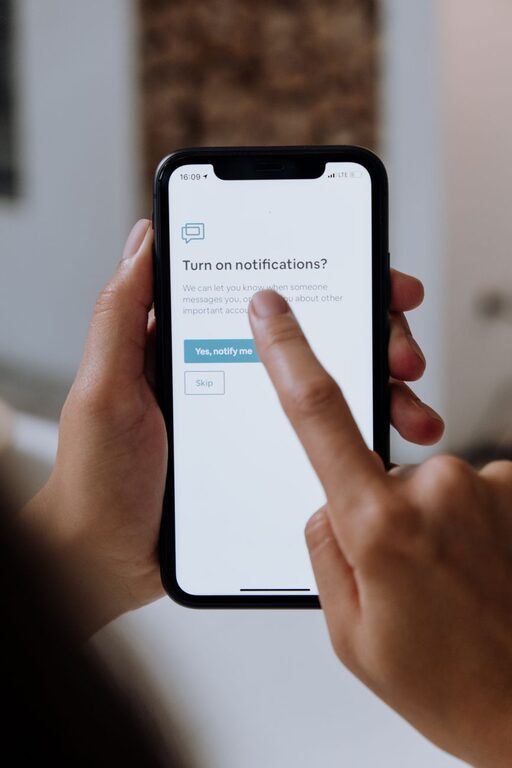
In today’s technology-driven world, notifications from apps, emails, and social media are constant. While these alerts can be helpful for staying informed, they often disrupt concentration, increase stress, and interfere with personal time. Setting clear boundaries with notifications is essential for maintaining focus, enhancing productivity, and improving overall wellbeing.
This post will explore practical tips to help you manage notifications effectively and regain control over your digital environment.
Why Set Boundaries with Notifications?
Notifications demand your attention immediately, often interrupting deep work or relaxation. When overwhelmed by constant alerts, it becomes harder to concentrate or enjoy downtime. By establishing boundaries, you can:
– Reduce distractions and increase productivity
– Improve mental clarity and reduce stress
– Create dedicated time for focused work and personal activities
– Enhance control over your digital habits
Tips for Setting Boundaries with Notifications
1. Audit Your Notifications Regularly
Start by reviewing which apps and services send you notifications. Identify which ones are necessary and which can be reduced or disabled. Many apps default to sending all types of alerts, but you rarely need every single one.
How to audit:
– Go to your device’s notification settings.
– Check each app’s notification permissions.
– Disable notifications for apps that aren’t urgent or important.
This simple audit can drastically cut down on unnecessary interruptions.
2. Customize Notification Settings by Priority
Not all notifications have the same level of importance. Prioritize the alerts that truly require immediate attention, such as calls or urgent messages, and silence less important ones, like promotional emails or app updates.
Most devices allow you to:
– Set priority notifications (e.g., calls from important contacts)
– Create custom notification sounds or vibrations for certain apps
– Mute or minimize notifications from specific apps during certain hours
3. Use “Do Not Disturb” Modes Strategically
Modern devices include “Do Not Disturb” (DND) features to pause notifications during selected periods. Use DND to create focused work blocks, meeting times, or uninterrupted personal moments.
Best practices:
– Schedule DND during work or study sessions
– Enable it during meals or family time
– Customize exceptions so critical calls or messages still get through
By planning DND periods, you can be more present and minimize distraction.
4. Set Specific Times to Check Notifications
Instead of reacting to notifications as they arrive, designate fixed times throughout the day to review them. This habit helps reduce the “always on” feeling and limits the disruption caused by constant pings.
For example:
– Check emails and messages in the morning, midday, and evening
– Avoid checking notifications first thing after waking up or right before bed
– Use app timers or focus apps to signal when it’s time to review alerts
5. Turn Off Non-Essential Push Notifications
Push notifications often come from social media, shopping apps, or games, and they tend to be the riskiest in terms of distraction. Consider turning off these notifications entirely.
Tips for turning them off:
– Within each app, go to notification settings
– Disable push notifications or reduce their frequency
– Use app-specific settings to mute notifications temporarily if needed
This can dramatically quiet your digital noise.
6. Manage Notifications Across Devices
If you use multiple devices (phone, tablet, laptop, smartwatch), notifications can multiply and cause confusion. Synchronize your notification settings across all your devices to avoid redundant alerts.
Strategies include:
– Setting consistent notification preferences on each device
– Disabling duplicate notifications on less-used devices
– Using settings to prioritize where notifications appear first
7. Communicate Your Boundaries to Others
Sometimes, the best way to manage notifications is to let others know when you’re not available. If colleagues or friends understand your boundaries, they’re less likely to expect immediate responses.
Ideas to communicate boundaries:
– Set an email auto-reply during off hours
– Use status messages on messaging apps to indicate availability
– Share your preferred communication times with teams or friends
8. Use Focus and Productivity Tools
Many apps and tools can help manage notifications by batching alerts or filtering them based on criteria you set. Explore tools like focus apps, email schedulers, or notification managers.
Popular options include:
– Focus mode apps that block notifications during work periods
– Email apps that prioritize important messages
– Notification managers that group and summarize alerts
These tools can help you regain control and reduce notification overload.
Conclusion
Setting boundaries with notifications is a key habit for better focus and peace of mind. By auditing notification settings, customizing priorities, scheduling “Do Not Disturb” periods, and communicating your availability, you can create a healthier relationship with technology. Experiment with these tips to find what works best for your lifestyle and enjoy the benefits of fewer distractions and more mindful digital engagement.